
VM Auto-Scaling Instances on MTN Cloud
Overview
This guide covers the configuration and application of auto-scaling thresholds for instances on the MTN Cloud Platform. Auto-scaling enables your infrastructure to automatically adjust the number of nodes based on resource utilization metrics, ensuring optimal performance and cost efficiency.
Why it matters:
- Cost Optimization: Automatically scale down during low-demand periods to reduce infrastructure costs, and scale up during peak usage to maintain performance.
- Performance Assurance: Prevent resource exhaustion by automatically adding nodes when CPU, memory, or disk utilization exceeds configured thresholds.
- Operational Efficiency: Eliminate the need for manual intervention to adjust instance capacity, reducing operational overhead and human error.
- Flexible Scaling Policies:Define custom thresholds for upscaling and downscaling based on memory, disk, or CPU metrics to match your application’s specific requirements.
Prerequisites
Before you begin, ensure you have:
- An active MTN Cloud Console login with the appropriate role (full permissions) to view Library (Automation) and Provisioning (Instances), e.g., the Customer Admin User role.
- Running instances or virtual machines to apply auto-scaling rules.
- A planned scaling strategy, including:
- Minimum and maximum node counts
- Resource thresholds for scaling actions (CPU, Memory, Disk)
- Whether upscaling, downscaling, or both are required
Phase 1 – Create Scale Thresholds
Purpose: Define pre-configured auto-scaling rules that determine when instances should scale up or down based on resource utilization metrics.
Step 1 – Navigate to Scale Thresholds
- Under the Library tab, select Automation.
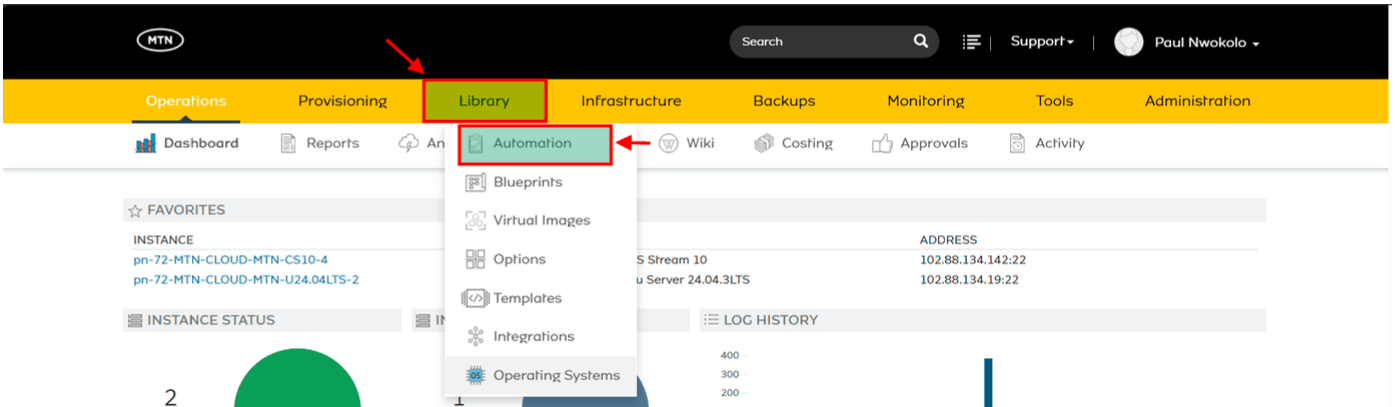
Figure 1: Access Automation from the Library tab.
- Navigate to Scale Thresholds.

Figure 2: Select Scale Thresholds from the Automation menu.
- Click the +ADD button to open the configuration modal.
Step 2 – Define Scale Threshold Configuration
Define Basic Information:
- Name: Provide a unique and identifiable name for the threshold (e.g., Web-Server-Auto-Scale).
- AUTO UPSCALE: Check this box to enable automatic scaling up (adding nodes) when maximum resource limits are reached.
- AUTO DOWNSCALE: Check this box to enable automatic scaling down (removing nodes) when resource usage drops below minimum levels.

Figure 3: Define basic information for the scale threshold.
Set Node Constraints:
- MIN COUNT: Specify the minimum number of nodes the instance must maintain. Auto-scaling will not remove nodes below this number and will add them if the count falls short.
- MAX COUNT: Specify the maximum number of nodes allowed. Auto-scaling will not add nodes beyond this limit and will scale down if it is exceeded.
Configure Resource Thresholds:
You can enable scaling based on three primary metrics:
- Memory Threshold:
- Check ENABLE MEMORY THRESHOLD.
- Set MIN MEMORY % (to trigger downscaling).
- Set MAX MEMORY % (to trigger upscaling).
- Disk Threshold:
- Check ENABLE DISK THRESHOLD.
- Define MIN DISK % and MAX DISK % limits.
- CPU Threshold:
- Check ENABLE CPU THRESHOLD.
- Set MIN CPU % and MAX CPU % targets for overall CPU utilization.

Figure 4: Configure resource thresholds for CPU, Memory, and Disk.
- Click Save Changes to create the scale threshold.
Phase 2 – Apply Scale Thresholds
To apply Scale Thresholds to an instance in MTN Cloud, you can configure them either during the initial provisioning process or after the instance is already running.
Option 1 – Applying During Provisioning
When creating a new instance, you can associate a scale threshold within the provisioning wizard:
- Navigate to Provisioning > Instances and click +ADD.

Figure 5: Navigate to Instances and click +ADD.
- Progress through the wizard to the Automation section.
Note: All other instance provisioning steps are skipped for brevity of this document. - Locate the Scale subsection (after going through all other provisioning steps).
- Select your pre-configured Scale Threshold from the dropdown menu to determine the auto-scaling rules for the new workload.

Figure 6: Select the scale threshold from the dropdown menu.
- Complete the instance (virtual machine) creation process.
Option 2 – Applying to an Existing Instance
If an instance is already provisioned, you can manage its scaling rules through the Instance Detail page:
- Navigate to Provisioning > Instances.
- Select the instance.
- Open the Scale tab.

Figure 7: Access the Scale tab from the Instance Detail page.
- Within this tab, you can select or modify the Scale Threshold.

Figure 8: Select or modify the scale threshold for the existing instance.
- Click Save Changes to apply the scale threshold.
Important Tips and Notes
- Instance Type Compatibility: Scale thresholds can only be applied to instance types that have Horizontal Scaling enabled and node types with defined load-balancer ports. Verify these prerequisites before attempting to apply auto-scaling.
- Threshold Planning:Carefully plan your minimum and maximum node counts based on your application’s expected load patterns. Setting the minimum too low may cause performance issues during traffic spikes, while setting the maximum too high may lead to unnecessary costs.
- Metric Selection:You can enable one or multiple resource thresholds (CPU, Memory, Disk) based on your application’s resource consumption patterns. For example:
- CPU-intensive applications should prioritize CPU thresholds.
- Memory-intensive applications should prioritize memory thresholds.
- Scaling Cooldown: Auto-scaling actions have built-in cooldown periods to prevent rapid flapping (frequent scaling up and down). Allow sufficient time for scaling actions to complete before evaluating further scaling decisions.
- Monitoring: Regularly review auto-scaling activity and resource utilization to ensure thresholds remain appropriate for your workload patterns. Adjust thresholds as needed based on observed performance.
- Testing: Test auto-scaling configurations in a development or staging environment before deploying to production to validate that scaling actions occur as expected.