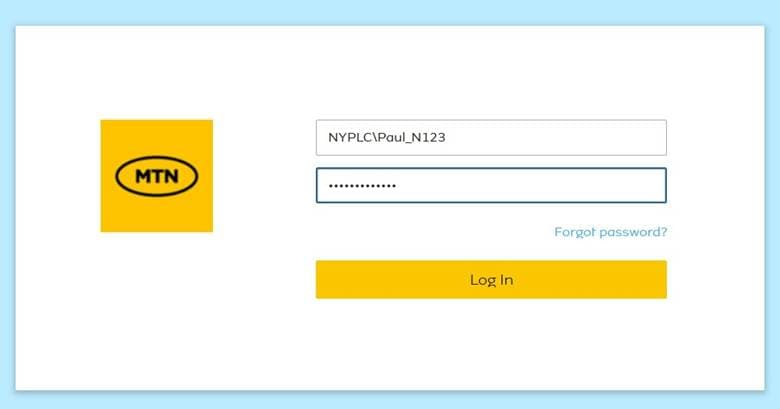
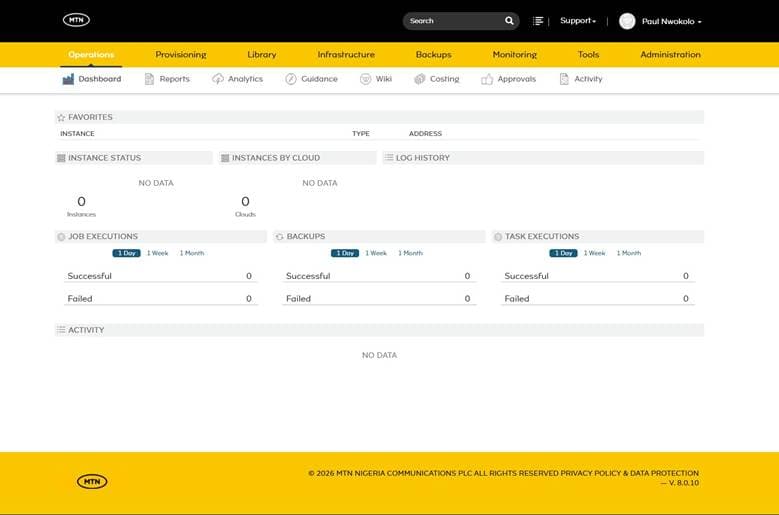
MTN Cloud Login Syntax; Configuring Identity Source (Account SubDomain) and Password Recovery
Before You Start (prerequisites)
- Have an MTN Cloud Console login with the appropriate role (full permissions) to the Administration (Users and Roles), i.e., have the Customer Admin User role assigned or a role with required or equivalent privileges assigned.
Tip: If you cannot see the Users and Roles features despite having the correct role, try refreshing the portal. If the issue persists, contact MTN Cloud Support.
Identity Sources
Identity Sources in MTN Cloud are external authentication integrations enabling centralised user identity management by leveraging enterprise providers. They authenticate users against services like Active Directory, ensuring consistent access control and simplified management.
SubDomains
A subdomain is a unique identifier assigned to each customer tenant within MTN Cloud, which is primarily used for user authentication and identification.
The Right Sequence
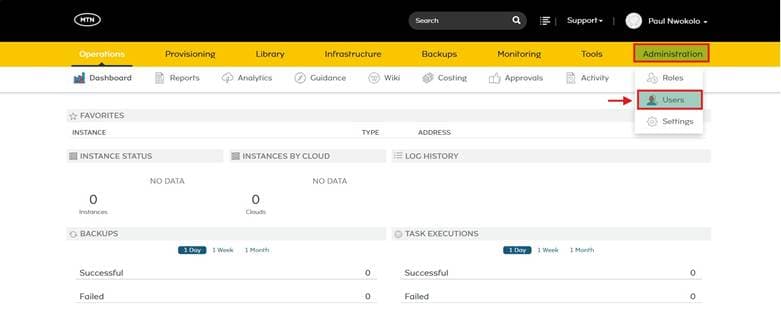
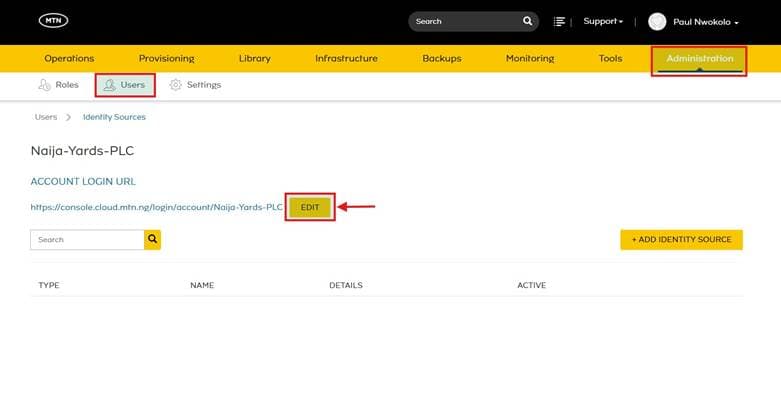
- Navigate to Users:Go to Administration → Users, to begin managing user configurations.
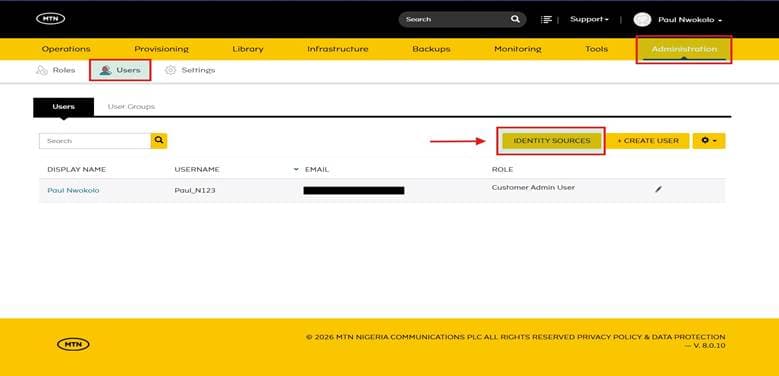
- Access Identity Sources: Within the Users detail page, click the IDENTITY SOURCES tab.
- Edit SubDomain: Click the Edit Button next to your SubDomain, which updates your Account Login URL.
- Save Changes: Select SAVE CHANGES to apply the updates.
Step 1: Navigate to Users
As a Customer Admin User — or any user with equivalent administrative privileges — navigate to the Administration tab.
- Select Users
Step 2: Access Identity Sources
- Initiate Configuration: Click on IDENTITY SOURCES
Step 3: Edit SubDomain
- Click the Edit Button next to your SubDomain
- Configure the Account Subdomain to the Desired Value
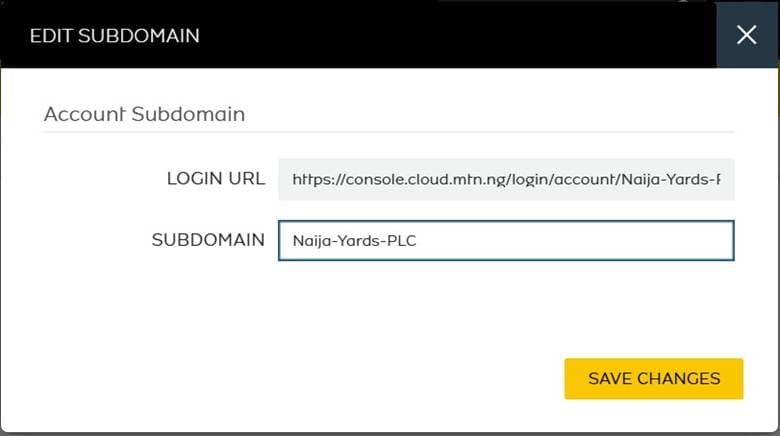
- Select SAVE CHANGES to apply the updates.
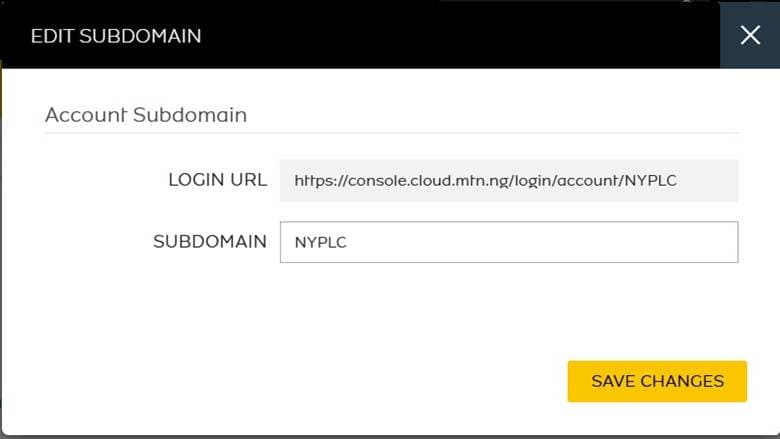
Step 4: Verify Updated Account Login URL
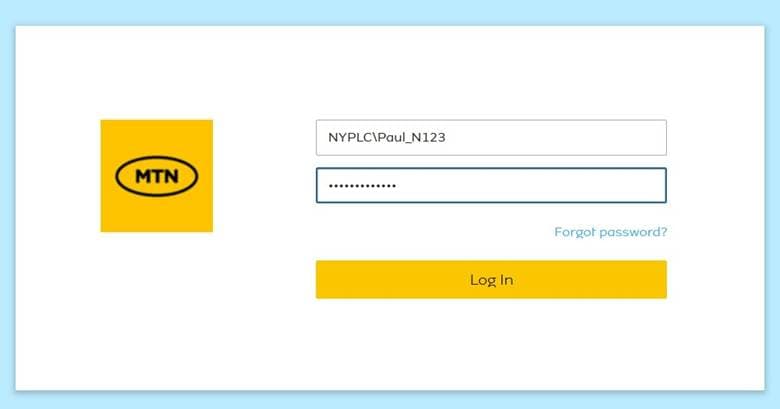
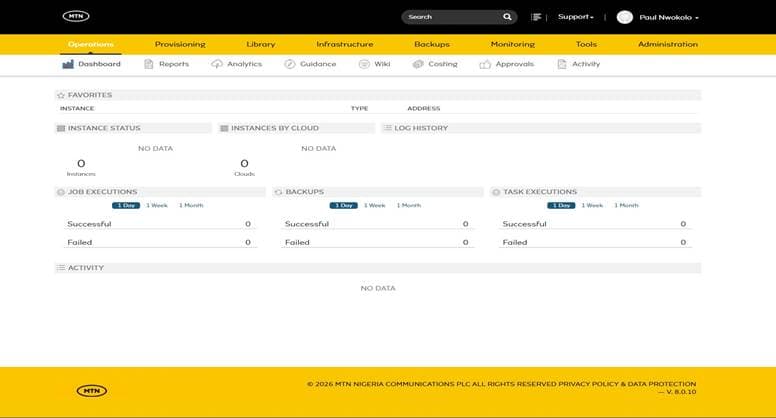
Congratulations! Your Account Subdomain and Login URL have been successfully configured. Your MTN Cloud tenancy can now be accessed using the configured subdomain. Ensure that identity sources and users are set up to use the correct login URL for proper authentication.
Important Tips & Notes
- Login Requirement: Once the account subdomain has been updated, all tenant users are required to log in using the new subdomain prefix in the format subdomain\username. This ensures proper authentication within the MTN Cloud tenancy.
- Unique Identifier Requirement: The account subdomain serves as a unique tenant identifier. An incorrect subdomain will cause authentication attempts to fail for tenant users.
- External Identity Provider Login: When an external identity provider (e.g. Active Directory) is in use, the subDomain will be aligned to that of the external identity source. Use this subDomain during your login to the MTN Cloud Console
Password Recovery
In MTN Cloud, the password reset or “Forgot Password” process for locally managed users follows a straightforward four-step procedure.
Important Note: Where an external identity provider is in use, user data, including passwords, is synced from external Identity Sources (such as Active Directory, Azure AD, etc). If a user is managed through such an integration, their password cannot be edited directly in MTN Cloud; it must be updated within the external source.
The Right Sequence
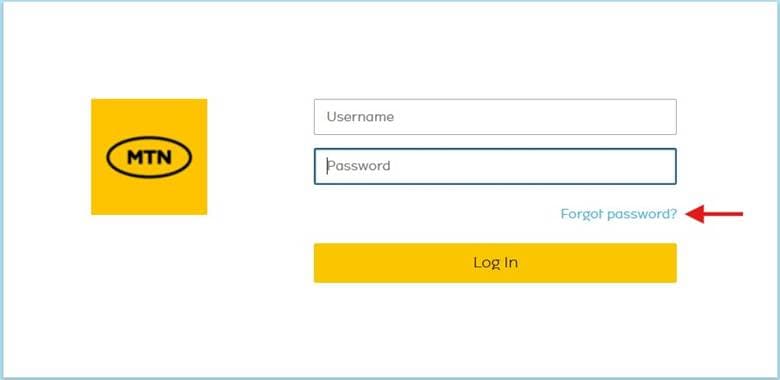
- Locate the Forget Password button: On the main login page, select the Forgot Password located near the login fields.
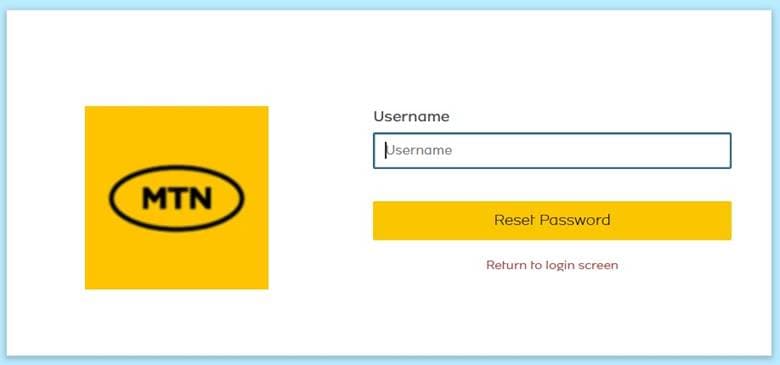
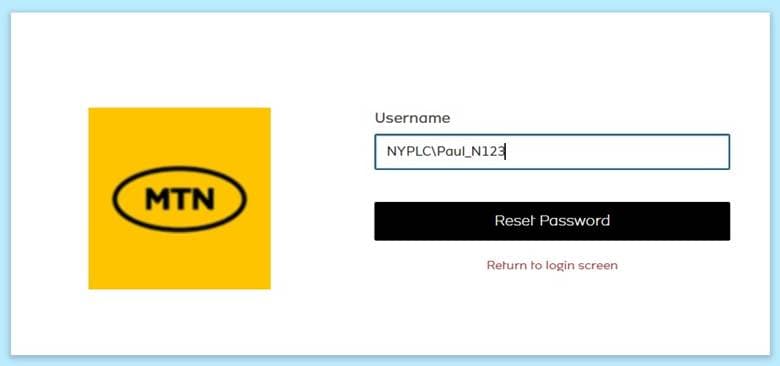
- Submit Request: Enter your account credentials in the format SubDomain\Username associated with your MTN Cloud account, then submit the request. This step is very important
- Email Notification: If a matching locally managed user account is found, MTN Cloud will send an automated email containing a password reset link to the registered email address.
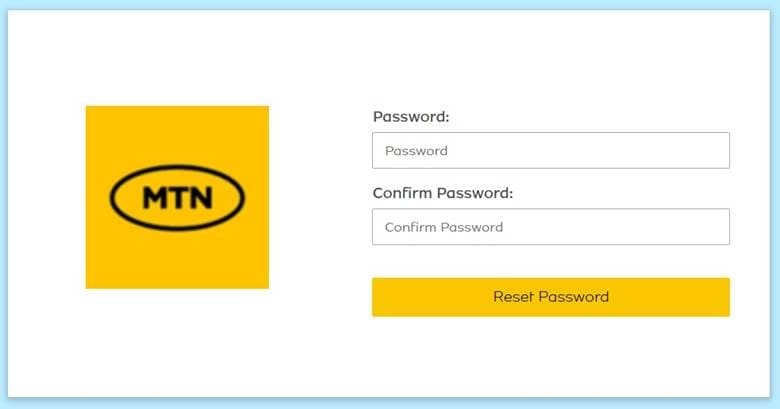
- Reset Password: Open the email and select the reset link to access the secure password reset page. Enter and confirm your new password. The password must be at least 8 characters long and include an uppercase letter, a lowercase letter, a number, and a special character.
Step 1: Locate the Forgot Password Button
Step 2: Submit Request
- Once Username has been filled with correct syntax, SubDomain\Username Click on Reset Password
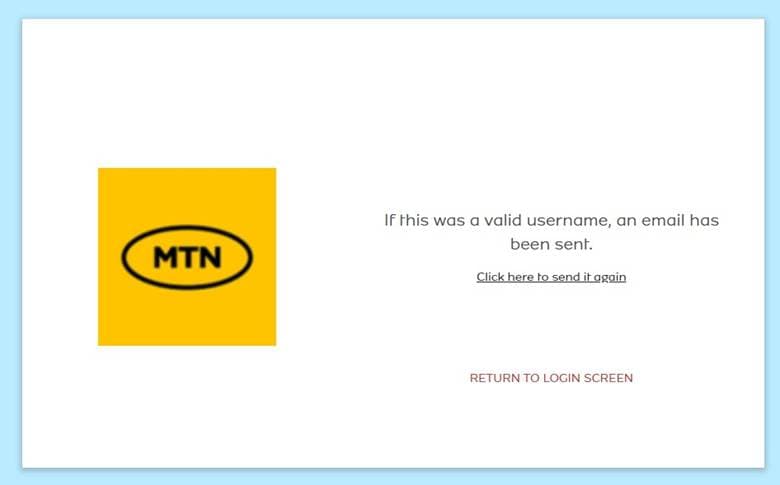
Step 3: Email Notification
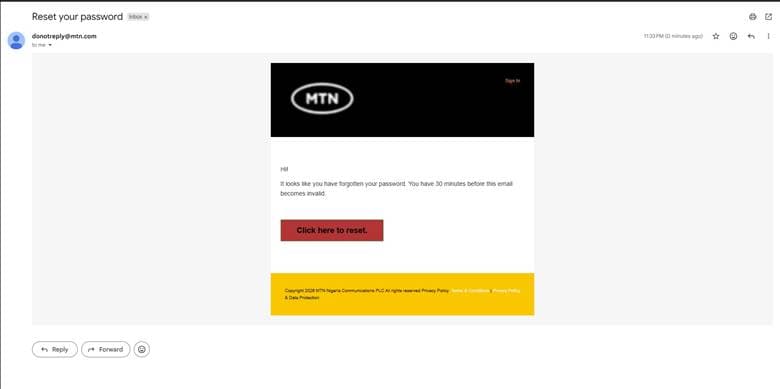
- Fill in New Password Twice and ensure they match and meet requirements
- Log in using your username syntax with the newly generated password