
MTN Object Storage (MOS) Provisioning Workflow on MTN Cloud
Before You Start (prerequisites)
- Have an MTN Cloud login with permissions to view Provisioning (Catalog) and Infrastructure (Storage).
Tip: If you don't see buckets, file shares, volumes, etc., contact support or refresh the portal.
2. Plan your Buckets
The Right Sequence
- ●Create Access Key and Secret Key: Generate a new access key pair to authenticate API requests and securely manage access to object storage resources.
- ●Create Bucket(s): Set up a uniquely named storage bucket to efficiently organise and store data objects.
Part 1 — Create Access Key and Secret Key
Purpose: Generate tenant-specific access credentials within MTN Cloud to enable secure provisioning and management of object storage. These keys authenticate API requests for creating buckets, uploading and retrieving objects, and integrating storage services with external applications.
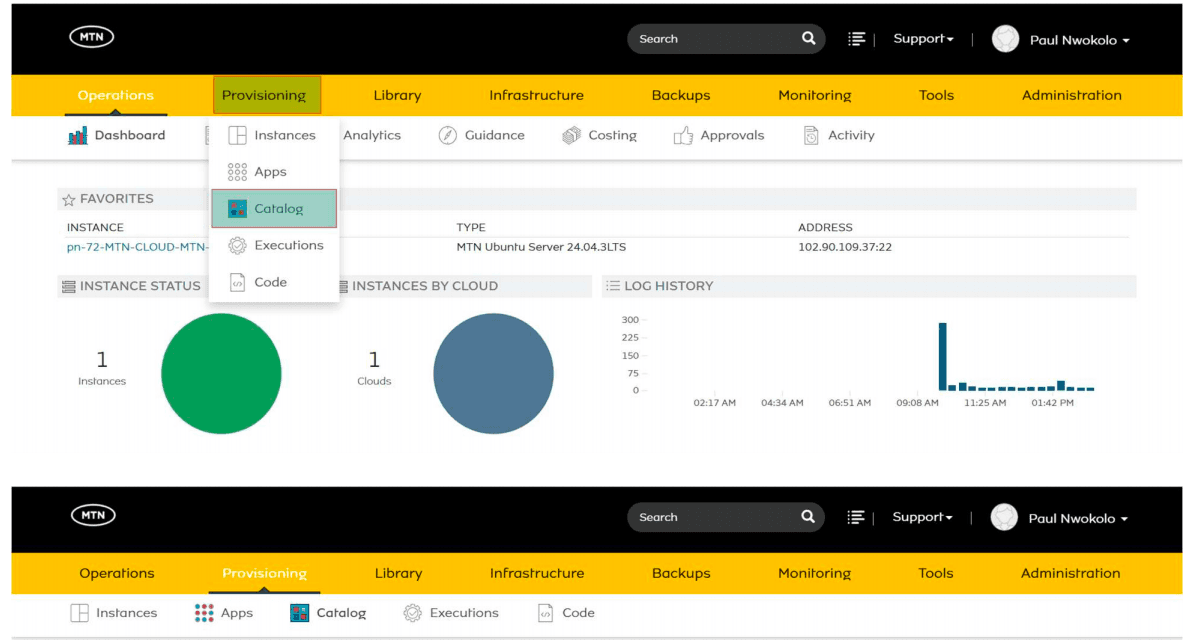
- Navigate to: Provisioning > Catalog.
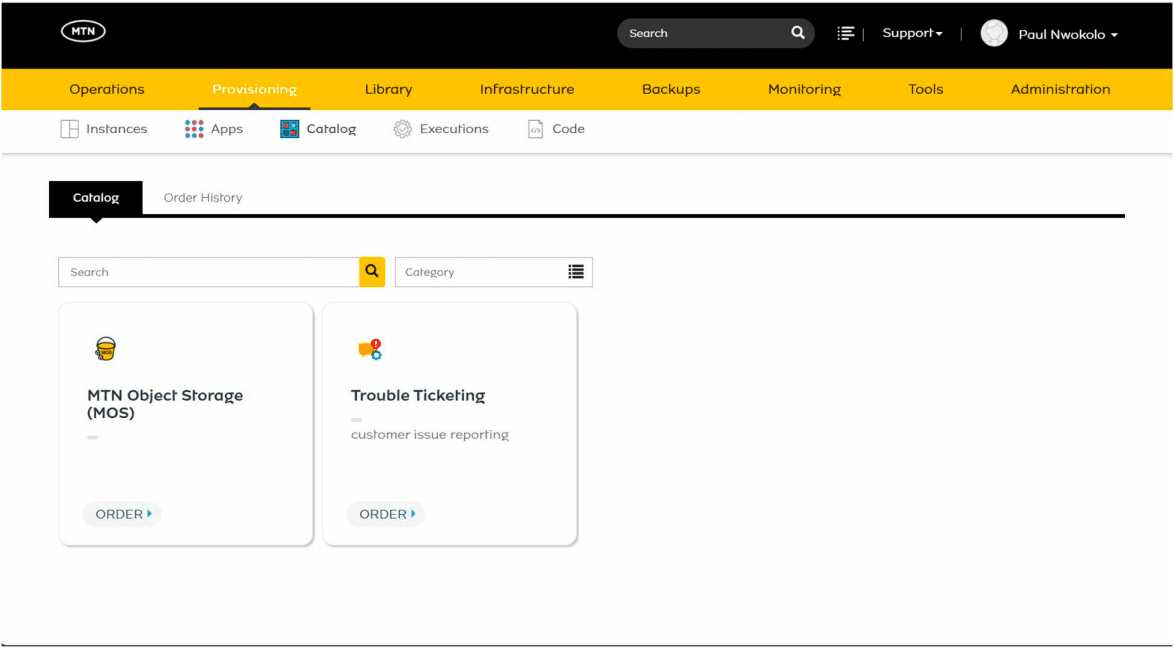
- Select catalog item (MTN Object Storage)
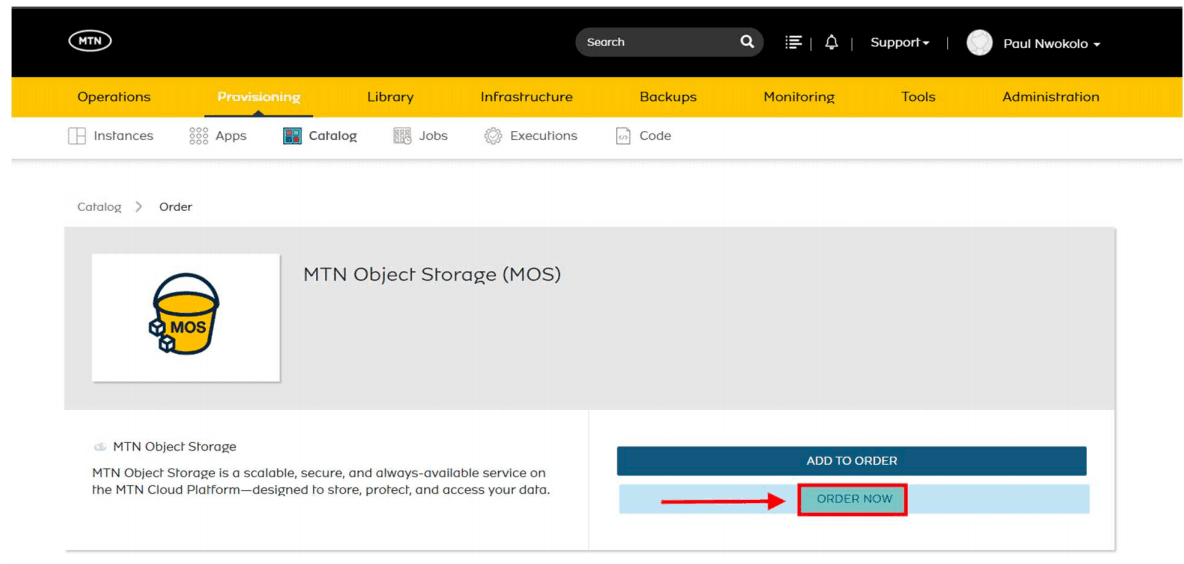
- Click Order Now
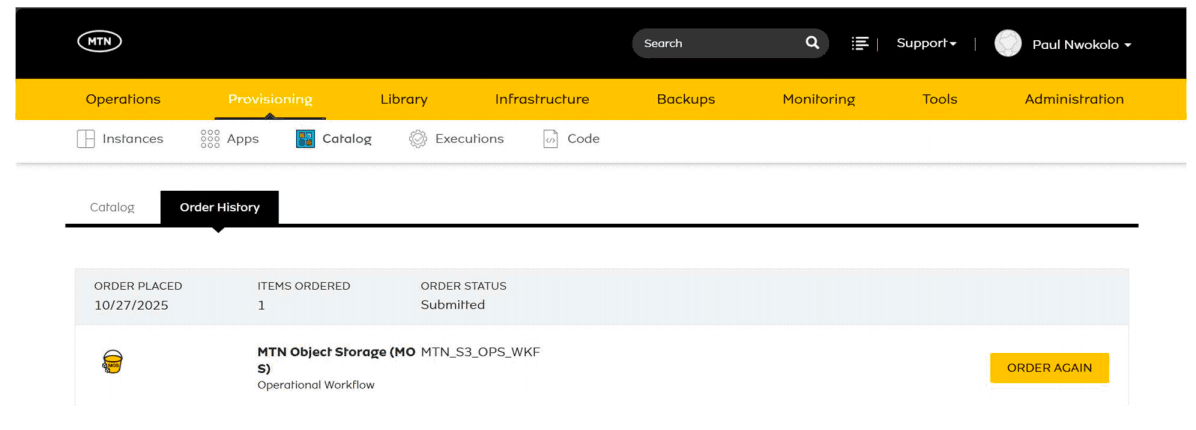
- Order Status (submitted) shows keys are currently being created. If showing otherwise, please contact support or simply try again.
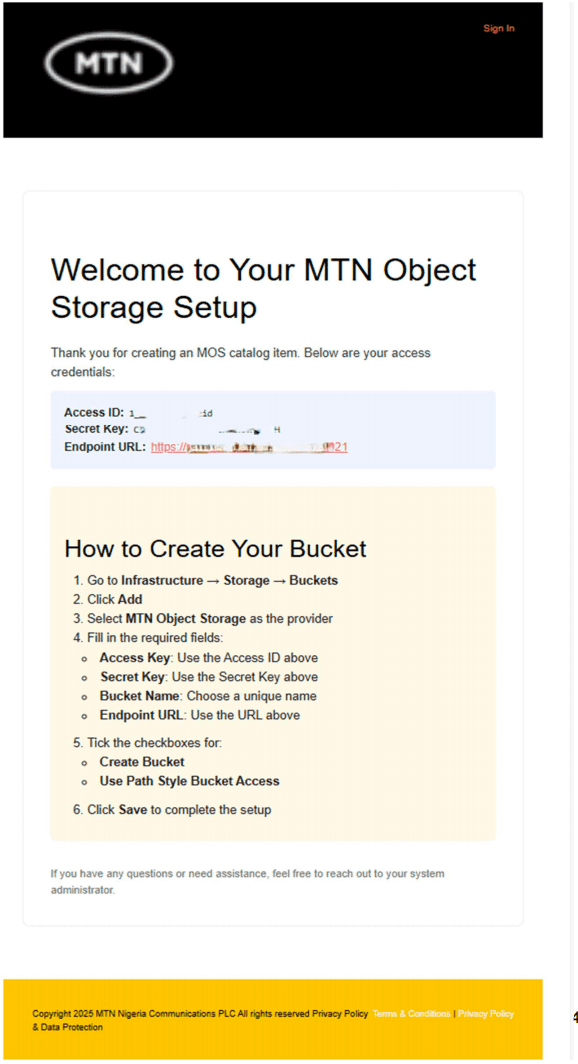
- Access key and Secret key with the endpoint URL can be found in the email.
Part 2 — Create Bucket(s)
Purpose: Provision logical storage containers—known as buckets—within MTN Cloud's object storage service. Buckets serve as the primary namespace for storing and organising objects, enabling scalable, secure, and structured data management for tenant-specific applications and workloads.
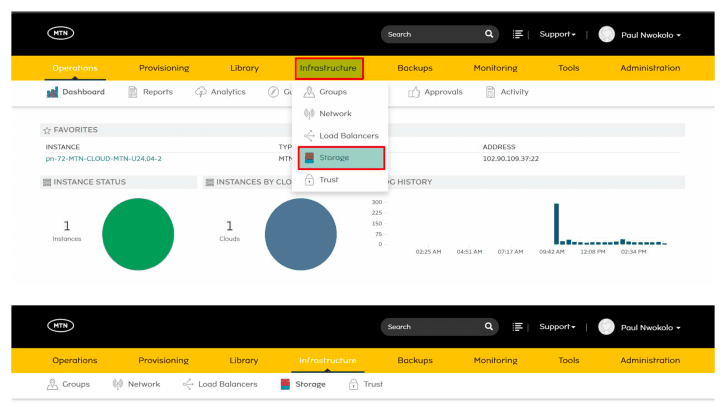
- Navigate to: Infrastructure > Storage > Bucket.
- Click +Add > MTN Object Storage.
- Assign:
- Name: [Internal label in MTN Cloud Console]
- Access Key: [Found in Email Received]
- Secret Key: [Found in Email Received]
- Bucket Name: [External storage ID, platform-specific]
- Check the box CREATE BUCKET
- Check the box USE PATH STYLE BUCKET ACCESS
- Region: Leave on Select
- Endpoint URL: [Found in Email Received]
- Check the box ACTIVE
- (Optional) Default Backup Target
- (Optional) Default Deployment Archive Target
- (Optional) Default Virtual Image Store
- (Optional) Retention Policy
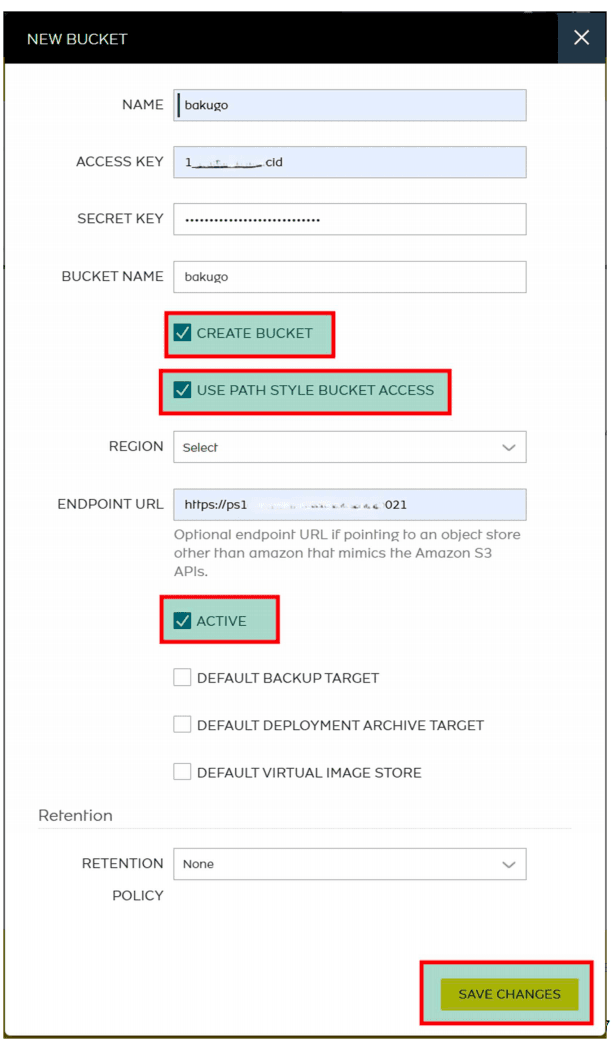
- Click on Save Changes
- The bucket will become visible after you save the changes.
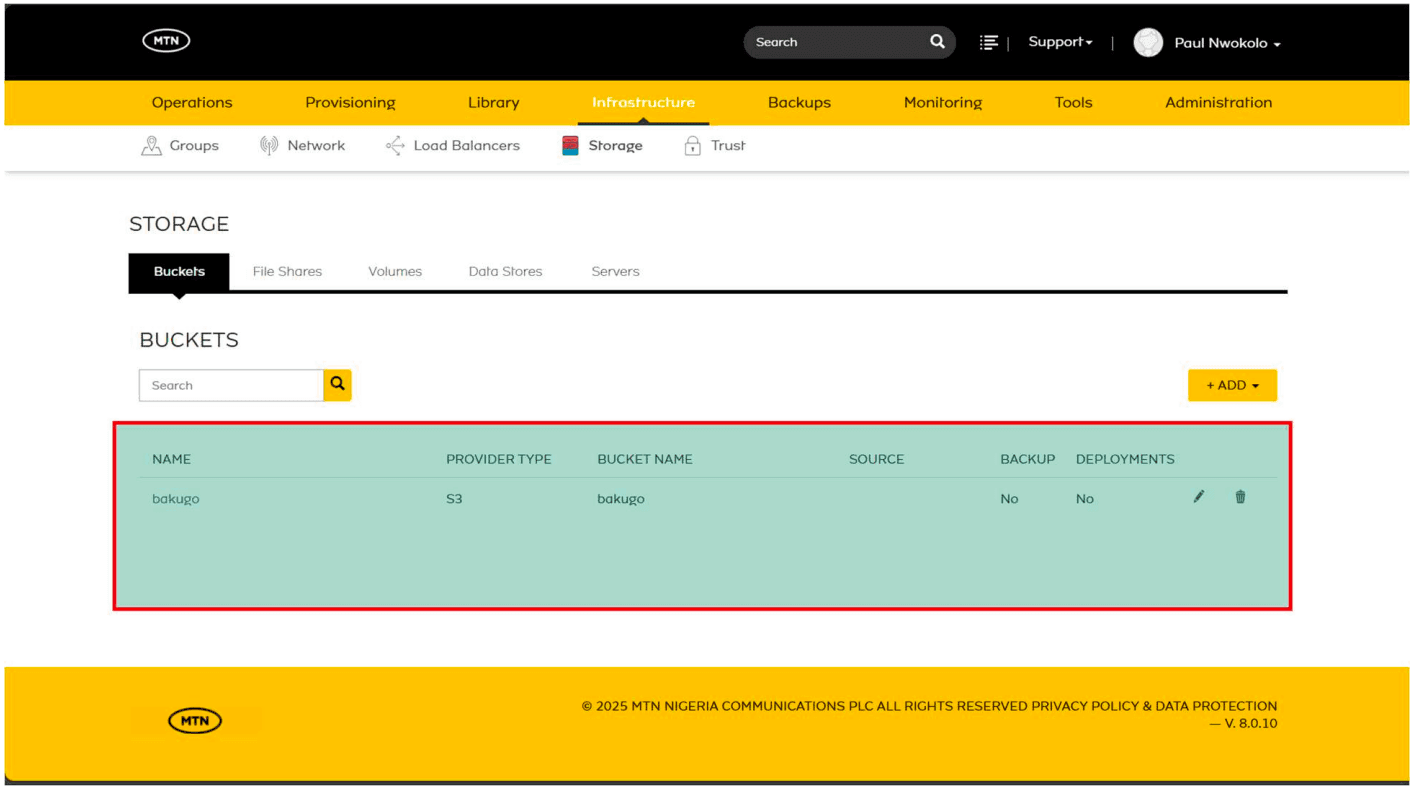
Congratulations! Your MTN Object Storage Bucket has been created. You can now begin storing and retrieving data securely using your access and secret keys. This bucket supports scalable object storage for your applications, backups, and media.
Final Notes - Regenerating Secret Key for Tenancy
A new secret key can be generated by repeating Part 1 — Create Access Key and Secret Key.
Note: This process does not generate a new access key.
- Email Notifications
- The user who regenerates the secret key receives:
- One email with the new secret key
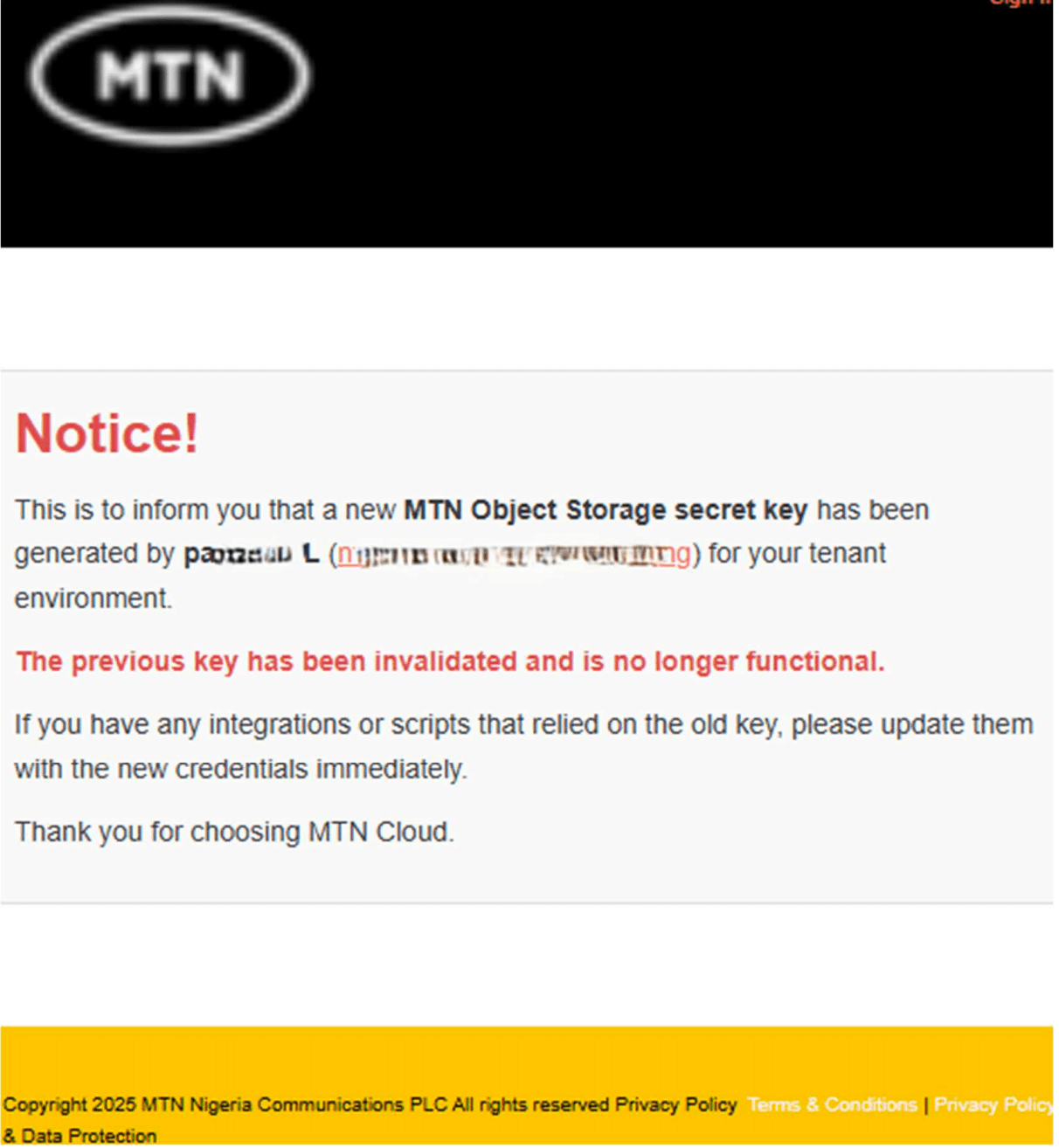
- One email showing who generated the new key
- Other users in the tenancy receive:
- One email showing who generated the new key
- The user who regenerates the secret key receives:
- Bucket Validation
- All existing buckets will be automatically validated and updated to use the new secret key.