MTN Cloud Login Syntax
Configuring Identity Source (Account SubDomain) and Password Recovery
Overview
The MTN Cloud Console provides a centralized administrative platform for managing user access, identity configurations, and multi-tenant security structures. By establishing a dedicated Account Sub-Domain, organizations can enforce strict identity isolation and streamline the enterprise authentication process.
This guide serves as a technical reference for:
- Tenant Customization:Configuring a unique, human-readable sub-domain that defines your organization’s specific login pathway.
- Enterprise Authentication Alignment:Ensuring that the platform’s identity infrastructure properly routes locally managed accounts and external identity providers (such as Active Directory).
- Self-Service Recovery: Executing a secure, audited workflow for local password resets while maintaining established enterprise password complexity standards.
Through proper configuration of these identity parameters, Customer Admin Users can guarantee seamless, secure console access across their entire user base.
Prerequisites
Before you begin, ensure you have:
- Have an MTN Cloud Console login with the appropriate role (full permissions) to the Administration (Users and Roles), i.e., have the Customer Admin User role assigned or a role with required or equivalent privileges assigned.
Tip: If you cannot see the Users and Roles features despite having the correct role, try refreshing the portal. If the issue persists, contact MTN Cloud Support.
Core Concepts
Identity Sources
Identity Sources in MTN Cloud are external authentication integrations enabling centralised user identity management by leveraging enterprise providers. They authenticate users against services like Active Directory, ensuring consistent access control and simplified management.
Sub-Domains
A subdomain is a unique identifier assigned to each customer tenant within MTN Cloud, which is primarily used for user authentication and identification.
Part 1: Configuring the Account SubDomain
The Right Sequence
- Navigate to Users: Go to Administration > Users, to begin managing user configurations.
- Access Identity Sources: Within the Users detail page, click the IDENTITY SOURCES tab.
- Edit Sub-Domain: Click the Edit button next to your Sub-Domain, which updates your Account Login URL.
- Save Changes: Select SAVE CHANGES to apply the updates.
Step 1: Navigate to Users
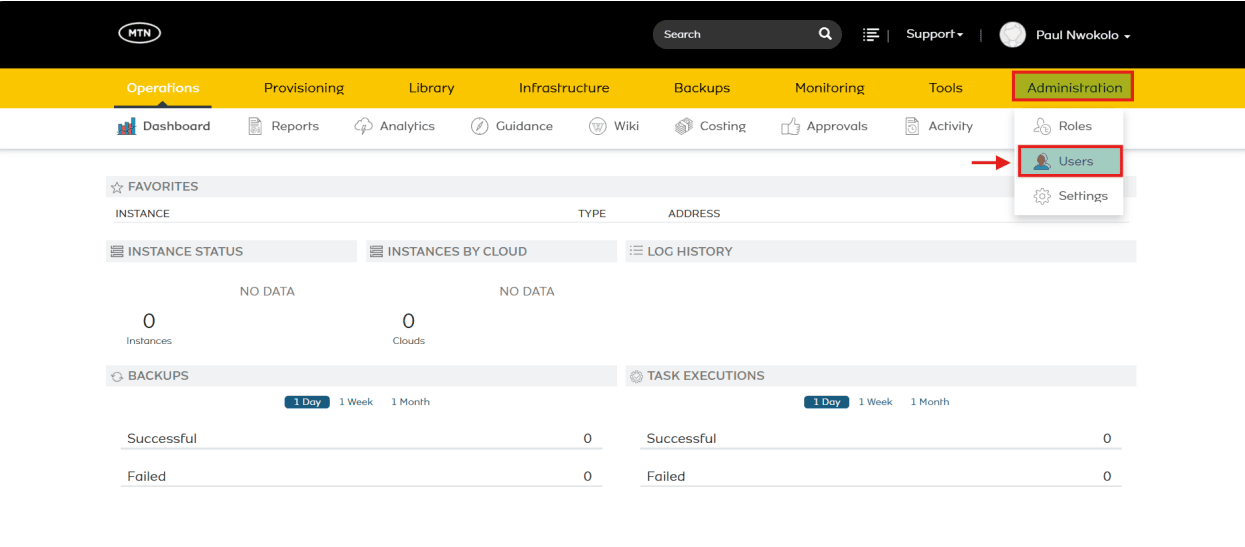
As a Customer Admin User or any user with equivalent administrative privileges, navigate to the Administration tab on the top menu bar, then select Users from the dropdown menu.
Step 2: Access Identity Sources
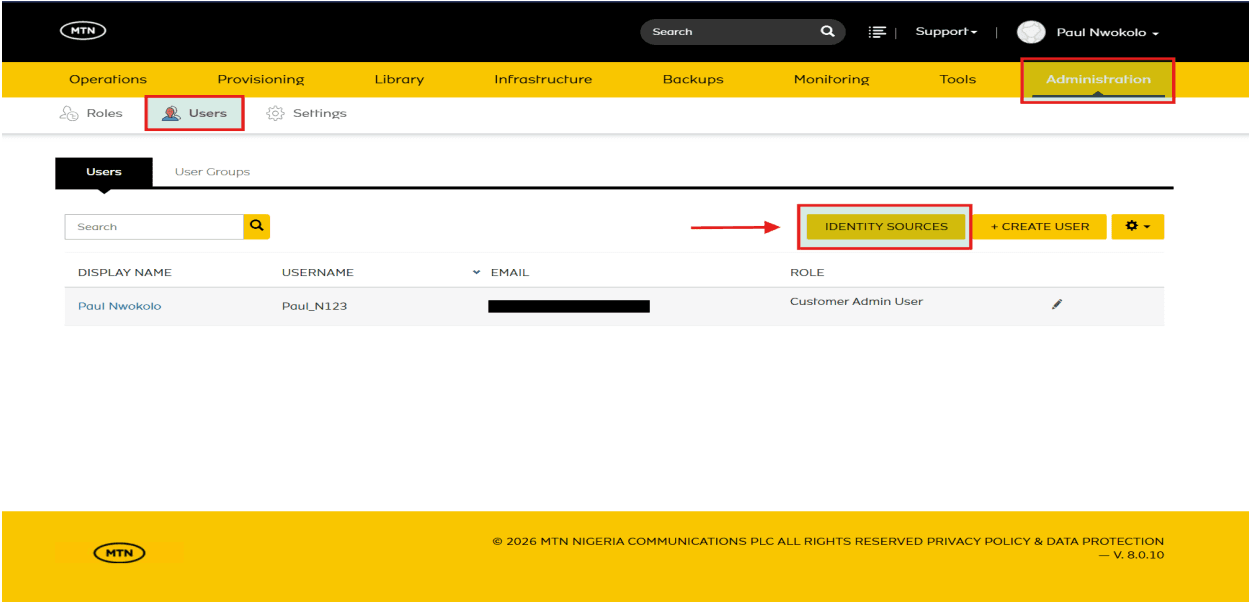
Initiate configuration by clicking on the yellow IDENTITY SOURCES button located on the top right area of the Users list view.
Step 3: Edit Sub-Domain
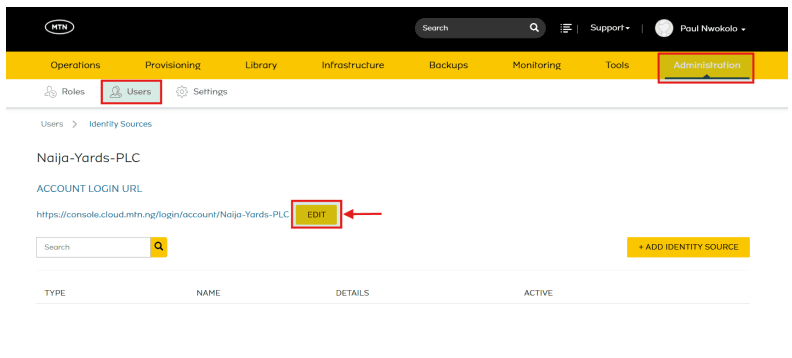
- Click the yellow EDIT button next to your current Account Login URL.
- In the EDIT SUBDOMAIN modal that appears, configure the Account Subdomain field to your desired value (e.g., changing from Naija-Yards-PLC to NYPLC).
- Select SAVE CHANGES to apply the updates.
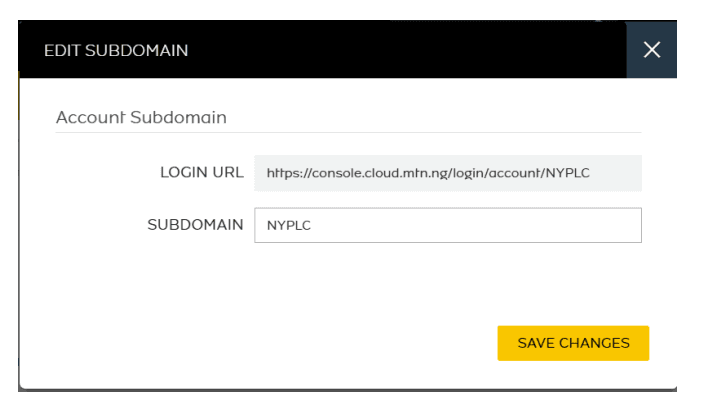
Step 4: Verify Updated Account Login URL
Congratulations! Your Account Subdomain and Login URL have been successfully configured. Your MTN Cloud tenancy can now be accessed using the configured subdomain. Ensure that identity sources and users are set up to use the correct login URL for proper authentication.
Important Tips & Notes
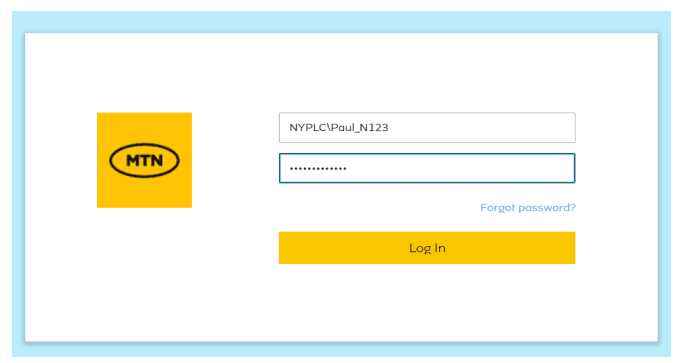
- Login Requirement: Once the account subdomain has been updated, all tenant users are required to log in using the new subdomain prefix in the format: subdomain\username (e.g., NYPLC\Paul_N123). This ensures proper authentication within the MTN Cloud tenancy.
- Unique Identifier Requirement: The account subdomain serves as a unique tenant identifier. An incorrect subdomain will cause authentication attempts to fail for tenant users.
- External Identity Provider Login: When an external identity provider (e.g., Active Directory) is in use, the subdomain will be aligned to that of the external identity source. Use this subdomain during your login to the MTN Cloud Console.
Part 2: Password Recovery Workflow
In MTN Cloud, the password reset or “Forgot Password” process for locally managed users follows a straightforward four-step procedure.
Important Note: Where an external identity provider is in use, user data, including passwords, is synced from external Identity Sources (such as Active Directory, Azure AD, etc.). If a user is managed through such an integration, their password cannot be edited directly in MTN Cloud; it must be updated within the external source.
The Right Sequence
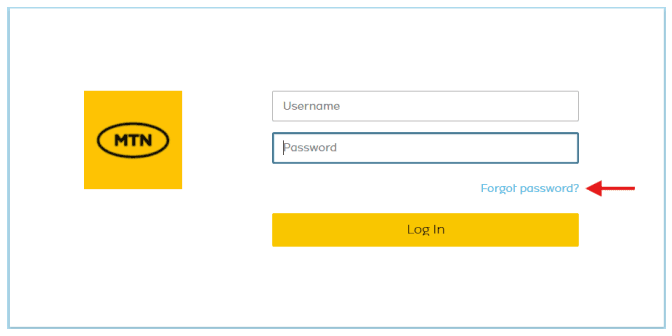
- Locate the Forgot Password button: On the main login page, select the Forgot password? link located near the login fields.
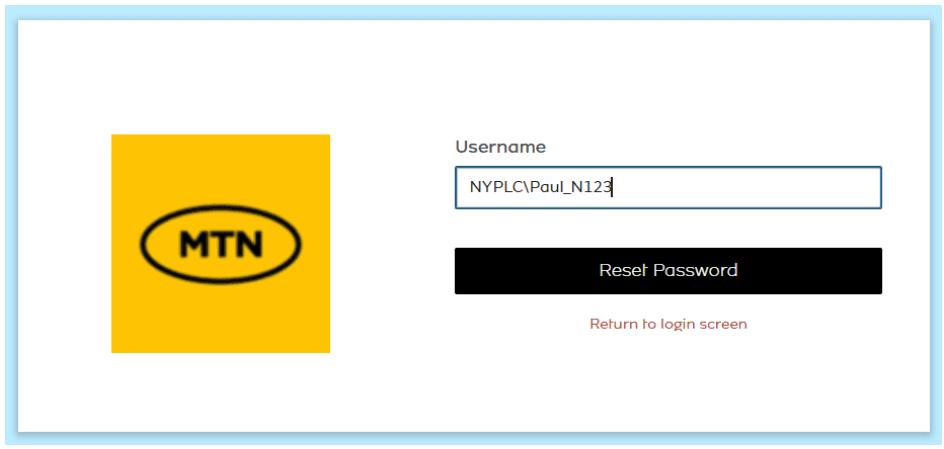
- Submit Request: Enter your account credentials in the format SubDomain\Username associated with your MTN Cloud account, then submit the request. This step is very important.
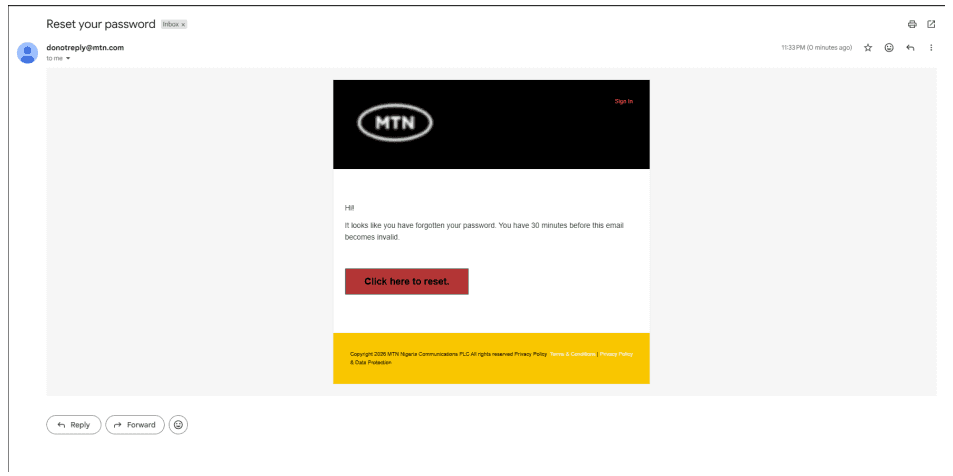
- Email Notification: If a matching locally managed user account is found, MTN Cloud will send an automated email containing a password reset link to the registered email address.
- Reset Password: Open the email and select the reset link to access the secure password reset page. Enter and confirm your new password.
Password Complexity Requirements
When resetting, your new password must meet the following baseline criteria:
- At least 8 characters long
- Include an uppercase letter
- Include a lowercase letter
- Include a number
- Include a special character
Verification Walkthrough
- Step 1: Click Forgot password? on the login portal.
- Step 2: Fill the Username field with the correct syntax: SubDomain\Username (e.g., NYPLC\Paul_N123) and click Reset Password.
- Step 3: Check your inbox for an email from donotreply@mtn.com with the subject Reset your password. Click the “Click here to reset” button inside the email within 30 minutes before it expires.
- Step 4: Fill in your new password twice, ensuring they match all password requirements, and hit Reset Password. You can now log back into the MTN Cloud Console dashboard using your new credentials.