
MTN MariaDB Database Server Provisioning Workflow on MTN Cloud
Overview
The MTN MariaDB Database Server is a self-managed, pre-configured MariaDB instance deployed within the MTN Cloud environment. It provides a secure, production-ready relational database platform, provisioned via a Catalog Item to ensure consistent configuration and rapid availability for application workloads.
Why it matters:
- Streamlined provisioning: Leveraging the Catalog Item automates deployment, ensuring a consistent, ready-to-use database instance.
- Controlled access: A dedicated security group restricts inbound/outbound traffic to only what the database service requires.
- Operational flexibility: The instance can be reconfigured post-deployment (SSL enforcement, password policy, security updates) to suit production requirements.
Prerequisites
Before you begin, ensure you have:
- An active MTN Cloud login with permissions to view Provisioning (Instances and Catalog) and Infrastructure (Network).
- A security group already defined for this deployment. For guidance on creating one, see the Security Groups guide.
- A deployment plan for the database instance (sizing, environment, network placement).
Tip: If you do not see the catalog items, please refresh your portal or contact support.
Important Note: Port 3306, used by the MariaDB service, must be added as an inbound rule in the personal security group and applied to the database server, alongside the default security group.
Deploy MTN MariaDB Database Server — Provision via Catalog
Purpose: Enable the automated deployment of a MariaDB-based database server within the MTN Cloud environment using Catalog Items.
- Navigate to: Provisioning > Catalog.
- Select catalog item MTN MariaDB.
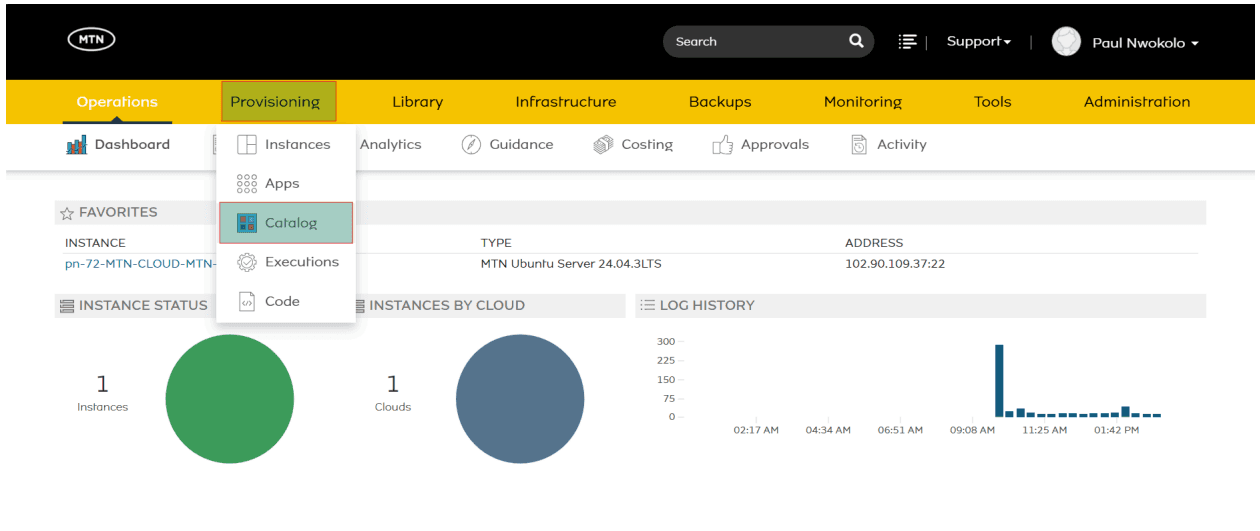
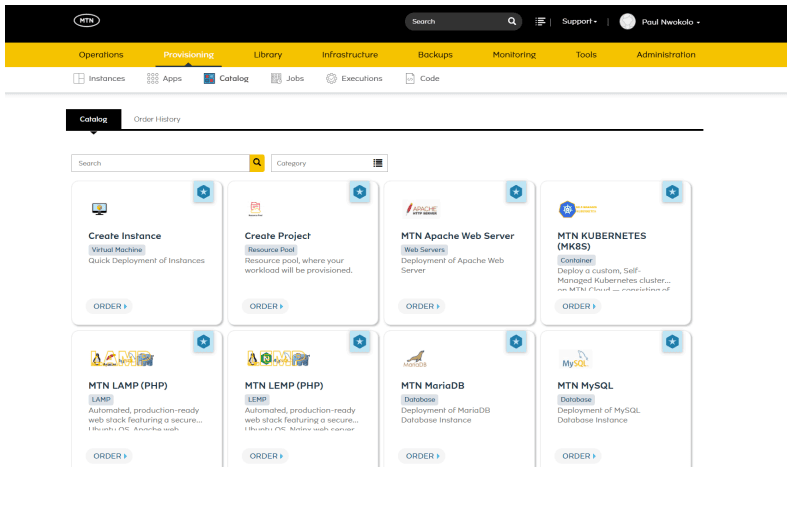
- Assign the following fields:
- Group
- Cloud
- Name
- Environment
- Labels
- Instance Configuration: Resource Pool, Plan, Volumes, Network(s), Security Groups (default and the security group created earlier), Floating IP
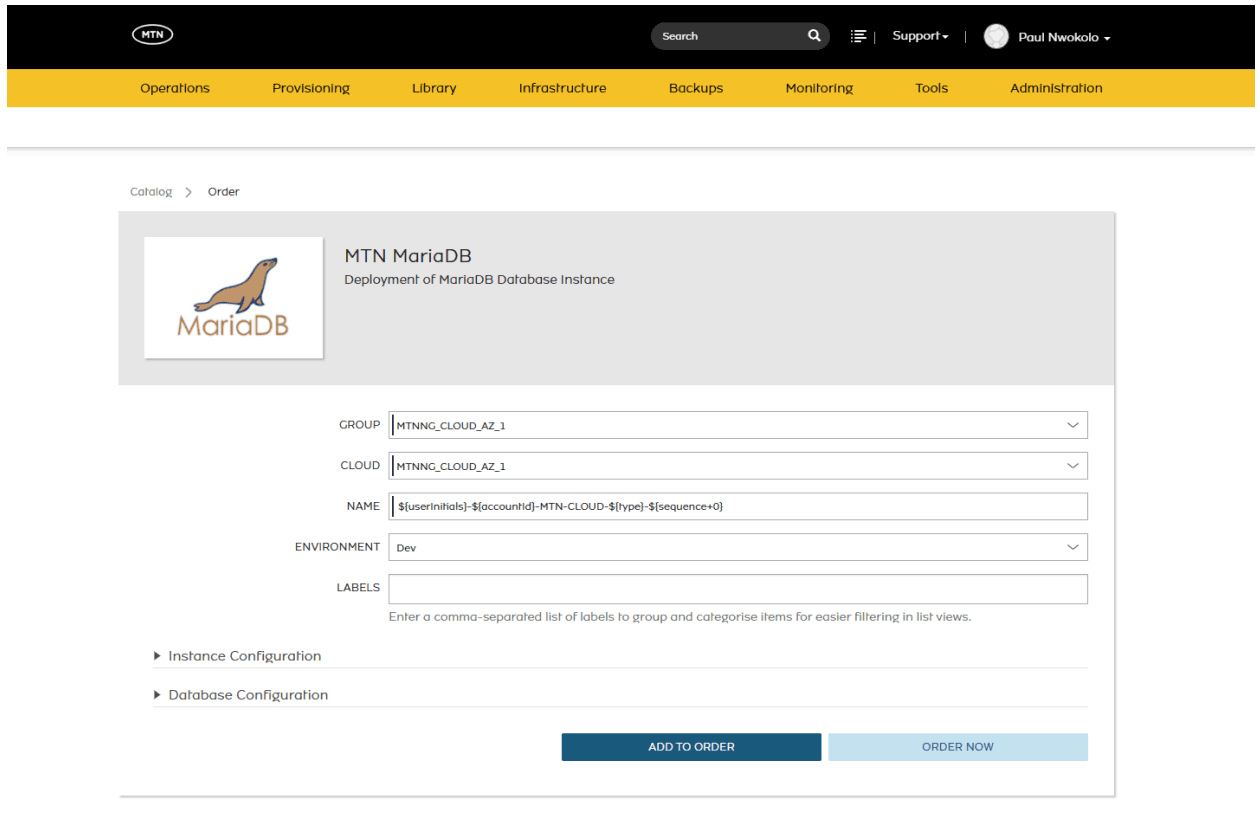
Configure the Database
Under Database Configuration, provide:
- MariaDB Version (10.6, 10.11, 11.4, 11.8, 12.1 or 12.2)
- Database Name
- DB Username
- DB Password
- (Optional) Make DB Owner — if checked, the created user becomes the DB owner
- (Optional) Require SSL for Connections
- Allowed CIDRs
- (Optional) Use HostSSL — if checked, host CIDRs are imputed as HostSSL
- Password Expiry Days
- (Optional) Auto Security Updates
Click Order Now once all fields are set.
Verify Deployment
- Navigate to: Provisioning > Instances.
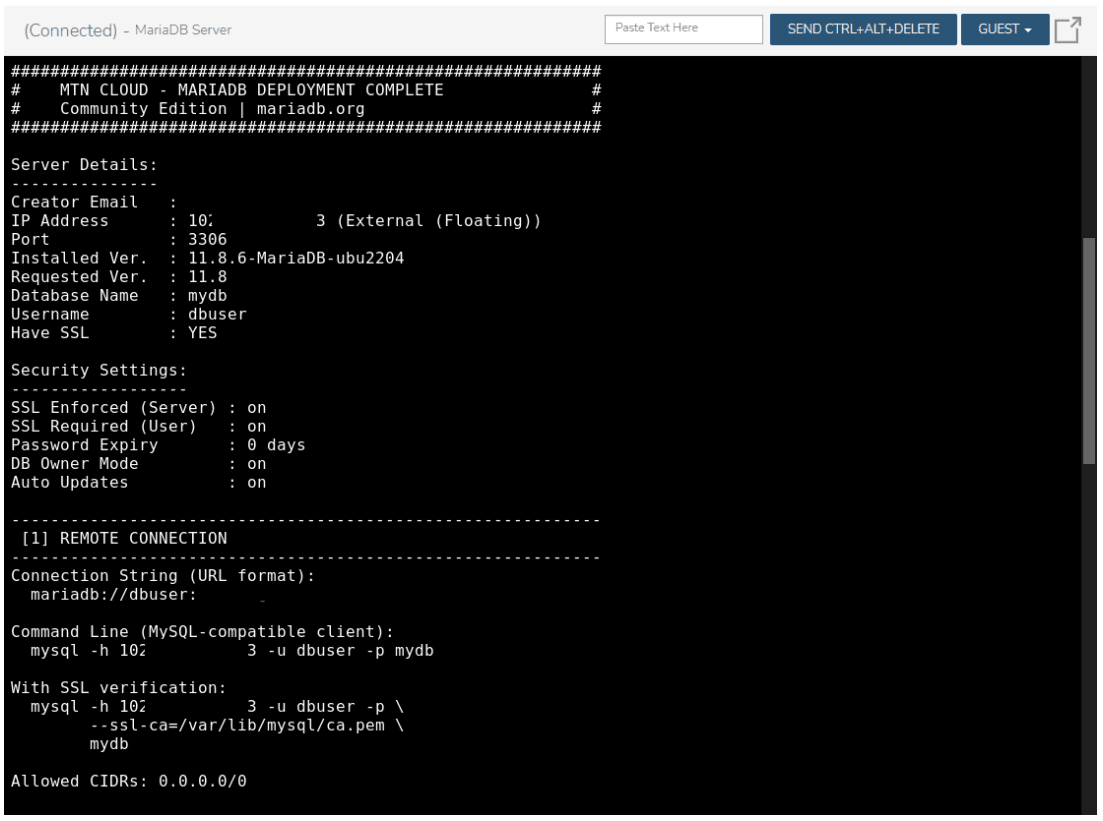
- Once provisioning is complete, open the instance’s Console tab to confirm the MariaDB server has installed and configured successfully.
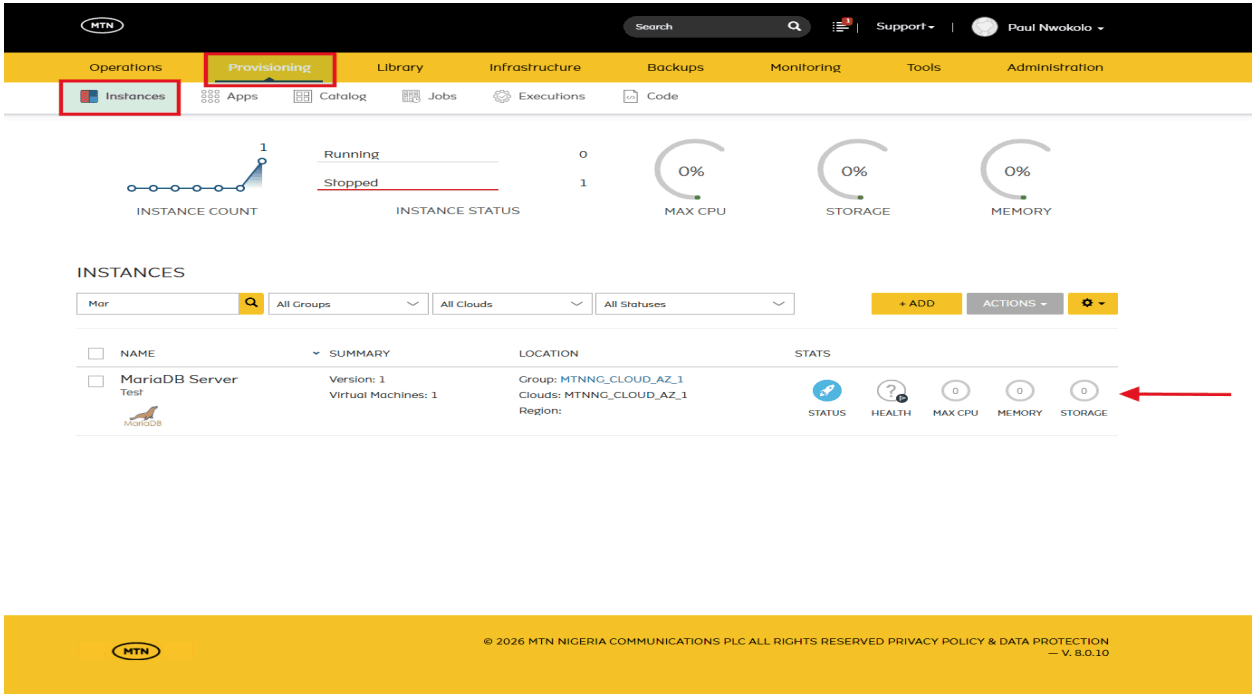
- The console output displays server details (IP address, port, database name, username), security settings (SSL enforcement, password expiry, auto updates), and remote connection strings for MySQL-compatible clients.
Alternative Provisioning
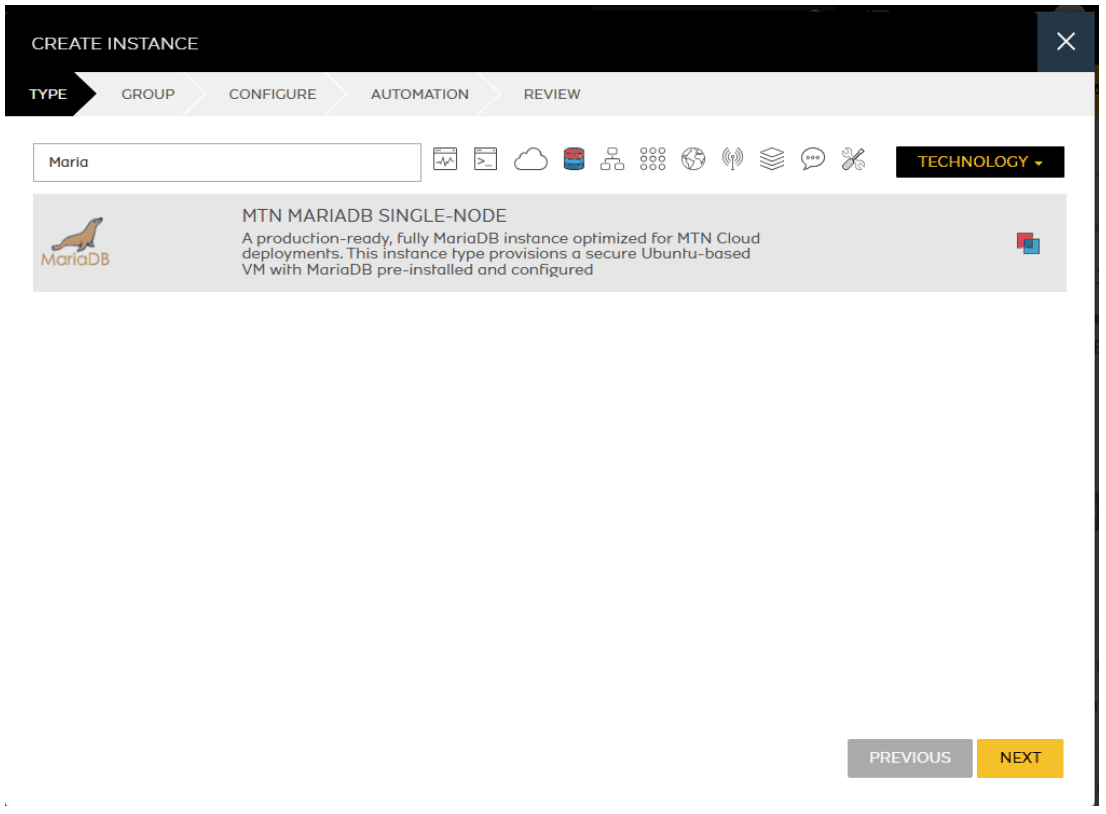
The instance can also be provisioned via the Instances tab — the same way you would normally create an instance or virtual machine — by selecting the MTN MariaDB Single-Node instance type.
Important Tips & Notes
- The server deploys with default authentication and security settings. For production use, strengthen passwords and adjust access controls in the MariaDB configuration.
- Remote connections are restricted by default. If external access is required, update the bind-address and user permissions, and ensure firewall rules allow traffic on the MariaDB port.
- Applications connect using the instance’s public IP and standard MariaDB credentials, with no additional client-side configuration required.