
MTN SMB Provisioning Workflow on MTN Cloud
Overview
This guide covers ordering, updating, and deleting a self-service SMB (Server Message Block) export on the MTN Cloud Platform via the Service Catalog. SMB exports provide a shared, network-mounted file system, accessed via a Windows style UNC path, that tenant instances can attach to for shared read/write access to files.
Why it matters:
- Shared Storage Access: SMB exports provide a network-mounted file system, addressable via a UNC path, that multiple tenant instances can attach to for shared read/write access to the same files.
- Full Lifecycle Self-Service: A single catalog form handles creation, updates, and deletion of an export. The mode is controlled by the Update Only and Delete Only checkboxes, with Update Password, Update Quota, and Update IP sub-toggles (revealed once Update Only is checked) governing exactly what changes on an update.
- Password-Backed Authentication: Unlike IP restriction alone, SMB shares are also protected by an SMB password (minimum 8 characters, with at least one lowercase letter, one uppercase letter, and one number), combining network level and credential level access control.
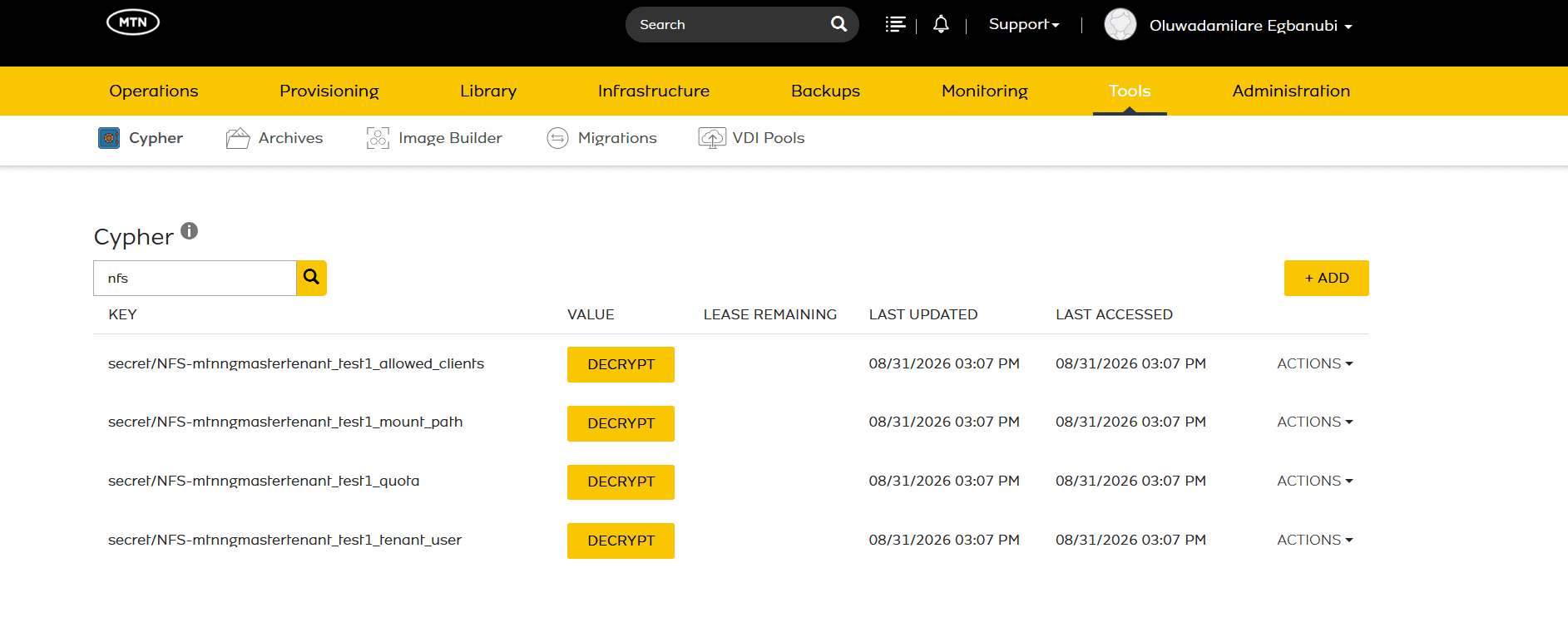
- Centralized Reference Storage: Post-provisioning details (share path, UNC path, quota, allowed IPs, tenant user, and password) are written to Cypher (under Tools) for secure reference, in addition to being emailed to the requester.
Prerequisites
Before you begin, ensure you have:
- An active MTN Cloud Console login with the appropriate permissions to view the Provisioning (Catalog) and Tools (Cypher) tabs.
- A planned SMB export strategy: a unique volume name, the required storage quota (GB), which client IPs should be permitted to mount it, and a password (for the first export or a password update).
Tip: If you do not see required features and resources, please refresh the portal or contact support.
Step 1 — Select Catalog Item
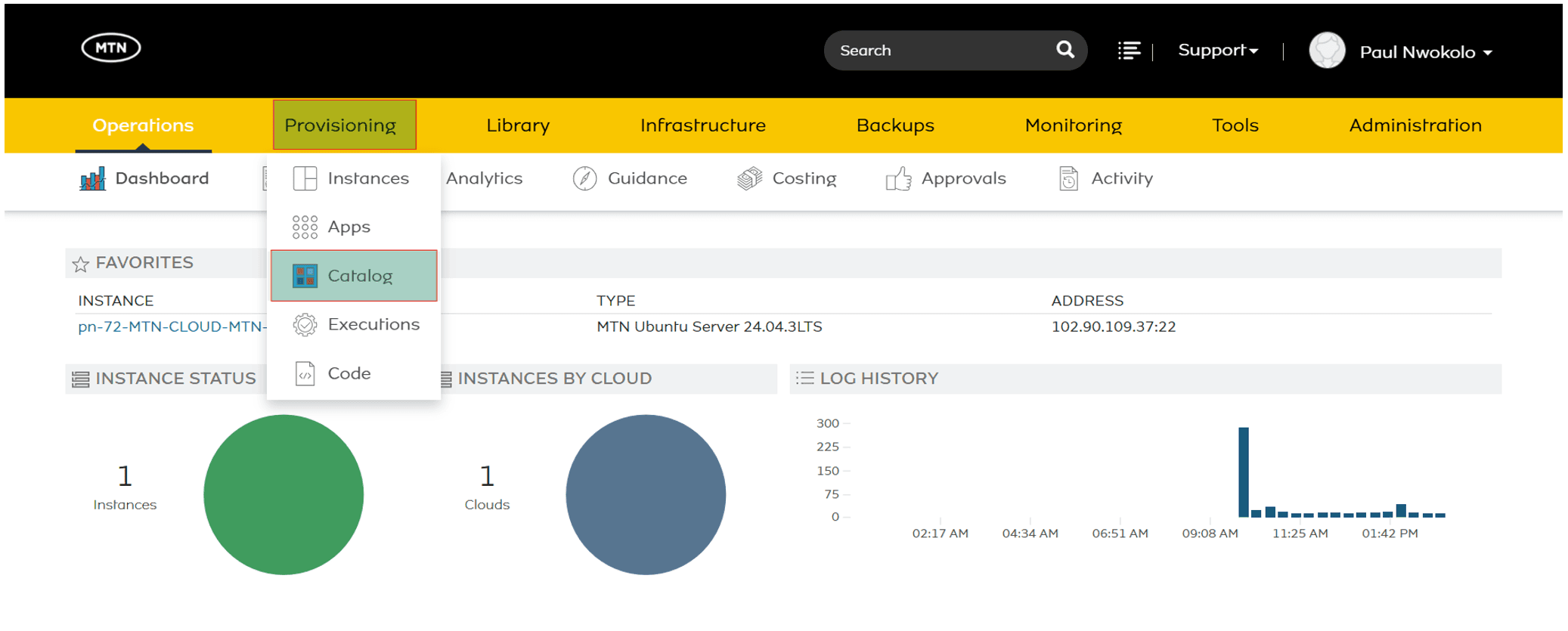
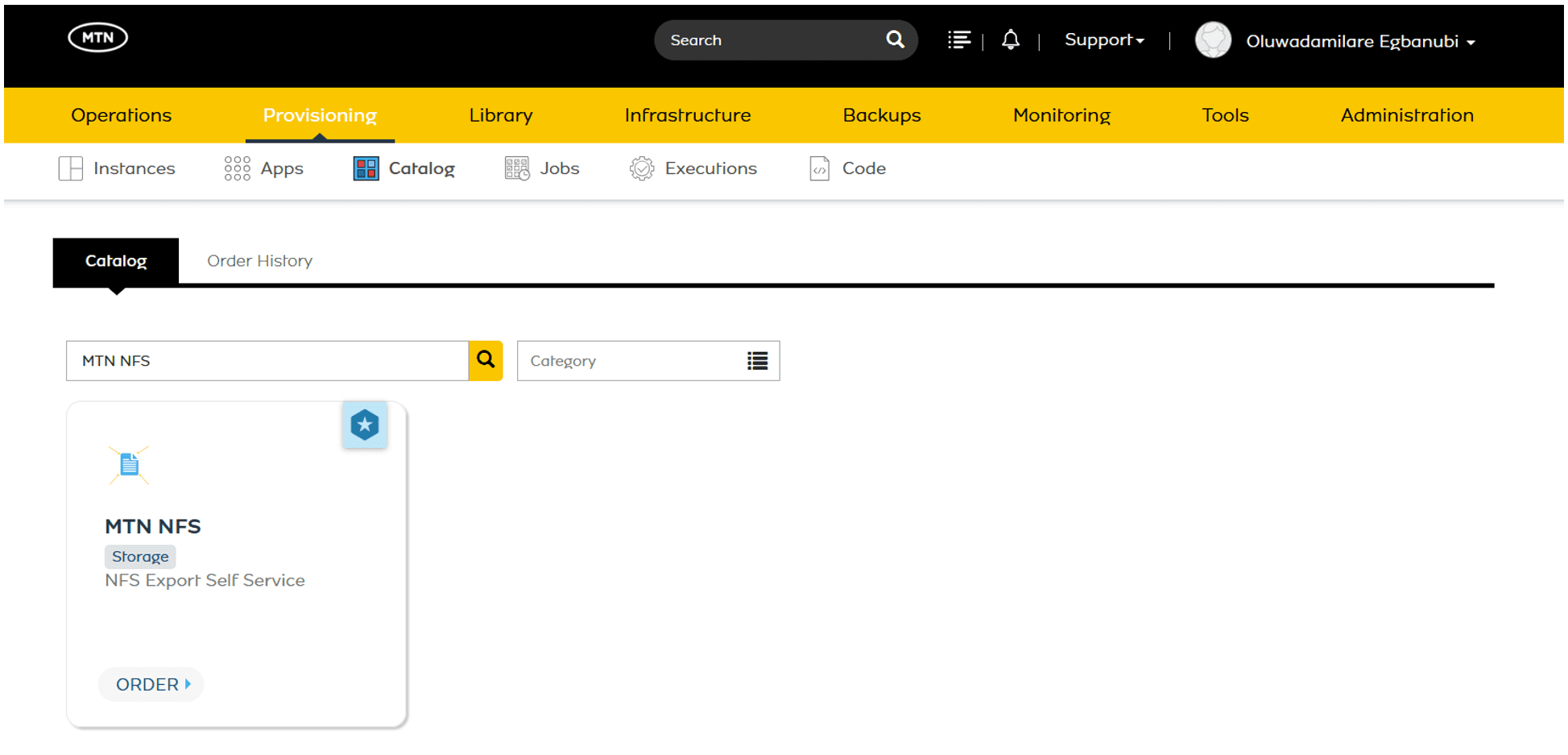
Navigate to the Provisioning tab and click on Catalog. Search for and select the MTN SMB catalog item.
Step 2 — Configure the Order Form
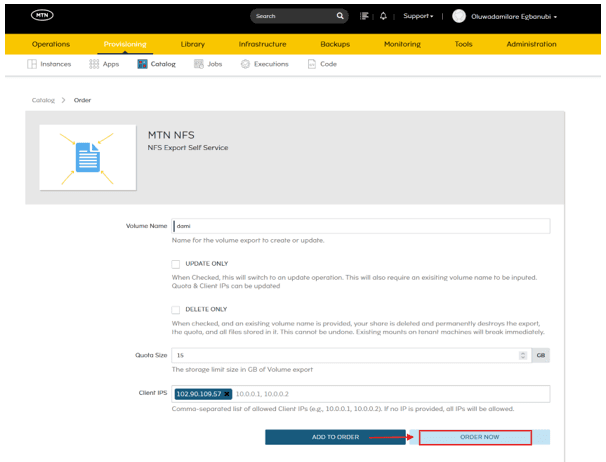
The checkboxes at the top of the order form determine which mode the request runs in; leaving both unchecked means a new export is being created.
General Configuration:
- Volume Name: Enter a unique name for the export to create, or the exact name of an existing export to update or delete.
- Update Only: Check this to switch the form into update mode. Requires the existing volume name; reveals the Update Password, Update Quota, and Update IP sub-options.
- Update Password: Must be checked to change the password.
- Update Quota: Must be checked to change the storage quota. Required alongside the new Quota Size. Note: quota size can only be increased.
- Update IP: Must be checked to change the list of allowed client IPs.
- Delete Only: Check this to permanently delete an existing export. This destroys the export, its quota, and all files stored in it, and cannot be undone.
- SMB Password: Enter a password only for the first export or to update an existing one; otherwise leave blank. Changing it will break current SMB connections until they are updated with the new password. Must be at least 8 characters long and contain at least one lowercase letter, one uppercase letter, and one number.
- Quota Size (GB): The storage limit for the volume export.
- Client IPs: A comma-separated list of allowed client IPs (e.g., 10.0.0.1, 10.0.0.2). Leave blank to allow all IPs.
Click Order Now to submit the request.
Step 3 — Verify and Manage
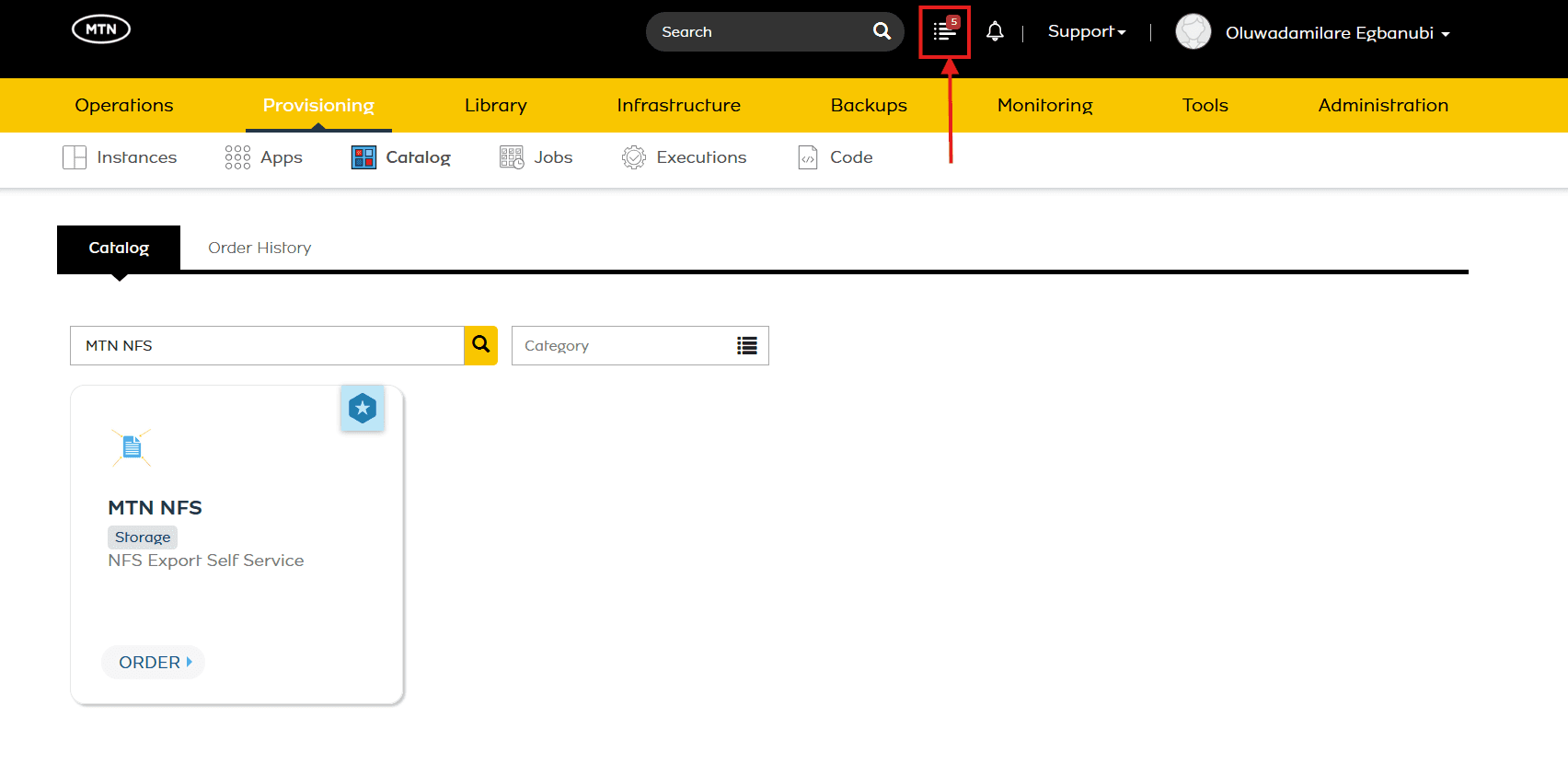
Progress of the SMB volume creation can be tracked via the activity/notifications icon in the top navigation bar.
Once complete, the allowed Client IPs, SMB volume mount path, volume quota, tenant user, and password are available for reference in Cypher (under Tools).
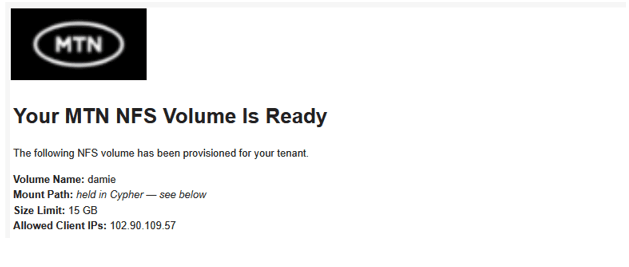
A confirmation email containing the share name, UNC path reference, size limit, username, and allowed client IPs is also sent to the requester.
Once the details have been verified, the SMB volume can be mounted and used by tenant instances.
Quick Reference — Create, Update, and Delete
To Create a new SMB Export:
- Enter a unique Volume Name.
- Leave Update Only and Delete Only unchecked.
- Enter your desired Password (at least 8 characters long, with at least one lowercase letter, one uppercase letter, and one number).
- Enter the required Quota Size (GB).
- Enter a comma-separated Client IPs list to restrict access. Leave blank to allow all IPs.
To Update an Existing SMB Export:
- Enter the existing Volume Name.
- Check Update Only.
- Check Update Password and/or Update Quota and/or Update IP depending on what needs to change, and fill in the corresponding field(s).
- Click Order Now.
To Delete an Export:
- Enter the existing Volume Name.
- Check Delete Only.
- Click Order Now.
NOTE: Deletion permanently destroys the export, its quota, and all files stored in it. This cannot be undone, and any tenant machines with an active mount will lose access immediately. Confirm the volume name carefully before submitting.
Important Tips and Notes
- Deletion Is Permanent: Checking Delete Only destroys the export, its quota, and all stored files with no way to undo it, and breaks any active tenant mounts immediately.
- Quota Increases Only: The storage quota for an existing export can only be increased, never decreased.
- Client IP Access: Leaving Client IPs blank allows all IPs to mount the export; a comma-separated list restricts access to only those hosts.
- Password Scope: A password is required only for a tenant's first SMB share. For later shares on the same tenant, it is ignored (left blank); one password serves all of the tenant's shares.
- Password Rotation Impact: Updating the password rotates it for every SMB share the tenant owns, and will break current SMB connections until they are updated with the new password.
- Password Requirements: At least 8 characters long, with at least one lowercase letter, one uppercase letter, and one number.
- Email Notifications - Creation: The requester receives the mount path, size, permitted addresses, and mount instructions. Other tenancy users receive a provisioning notification with the requester's details.
- Email Notifications - Update: The requester receives the before/after values and resulting cluster state. Other tenancy users receive a summary of changes and any access impact.
- Email Notifications - Deletion: The requester receives the deleted resource details, final capacity figures, and deletion timestamp. Other tenancy users receive a deletion warning and notification that associated mounts are no longer accessible.
- Reference Lookup: If the original email isn't available, allowed Client IPs, mount path, quota, tenant user, and password can always be retrieved from Cypher (Tools > Cypher).